Debug Data Download
If you experience an issue with the sensor, the ANB support team may request debug data to assist with troubleshooting. This section explains how to download the files, which can be shared via email or, preferably, uploaded to a cloud service with a link provided to the ANB team.
| Instruction | Example |
|---|---|
| 1. Connect the sensor to anb_utils 2. Select option 3 for the command line prompt | 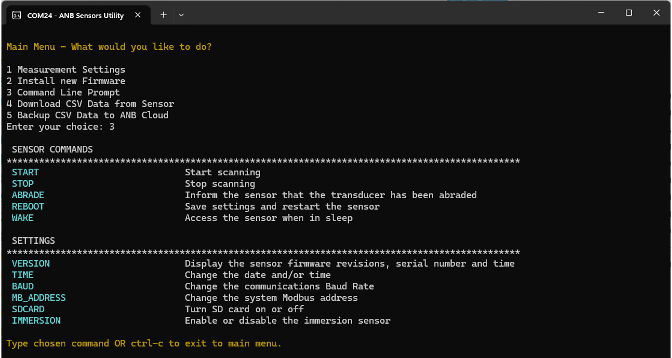 |
| 3. Type: stop 4. Type: mode 5. Select option 1 for manually controlled 6. Type: menu! | 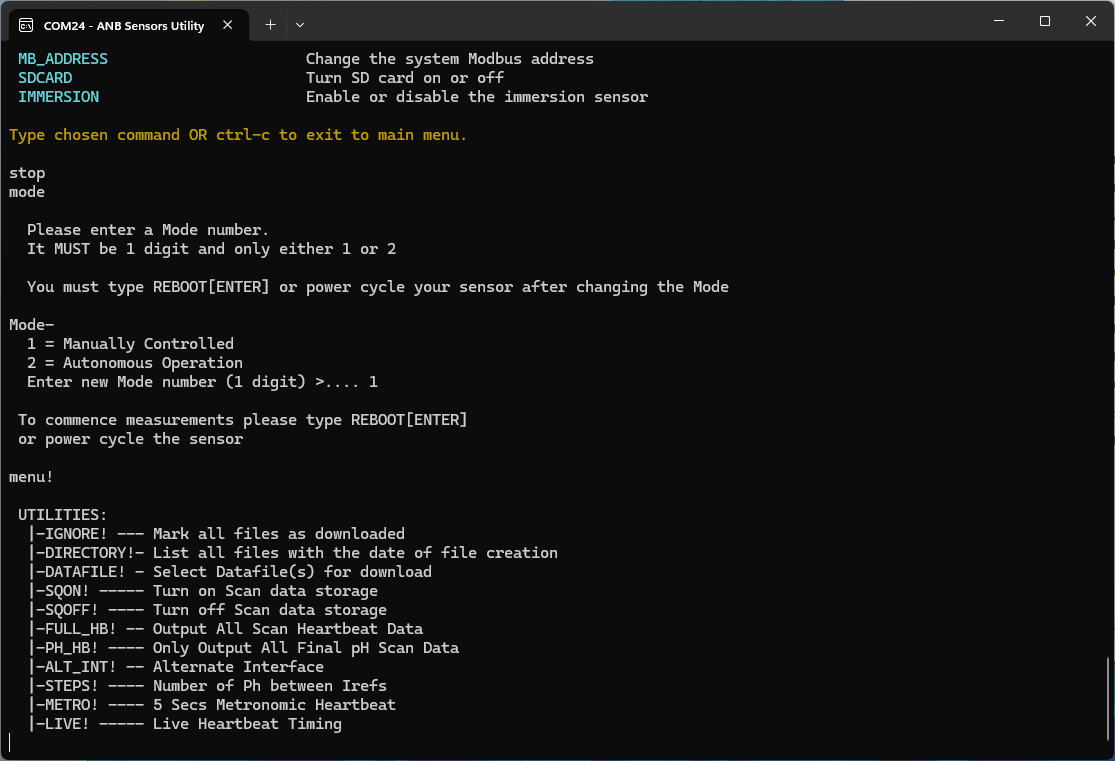 |
| 7. Type: full_HB! 8. Type: reboot 9. Type: Ctrl C | 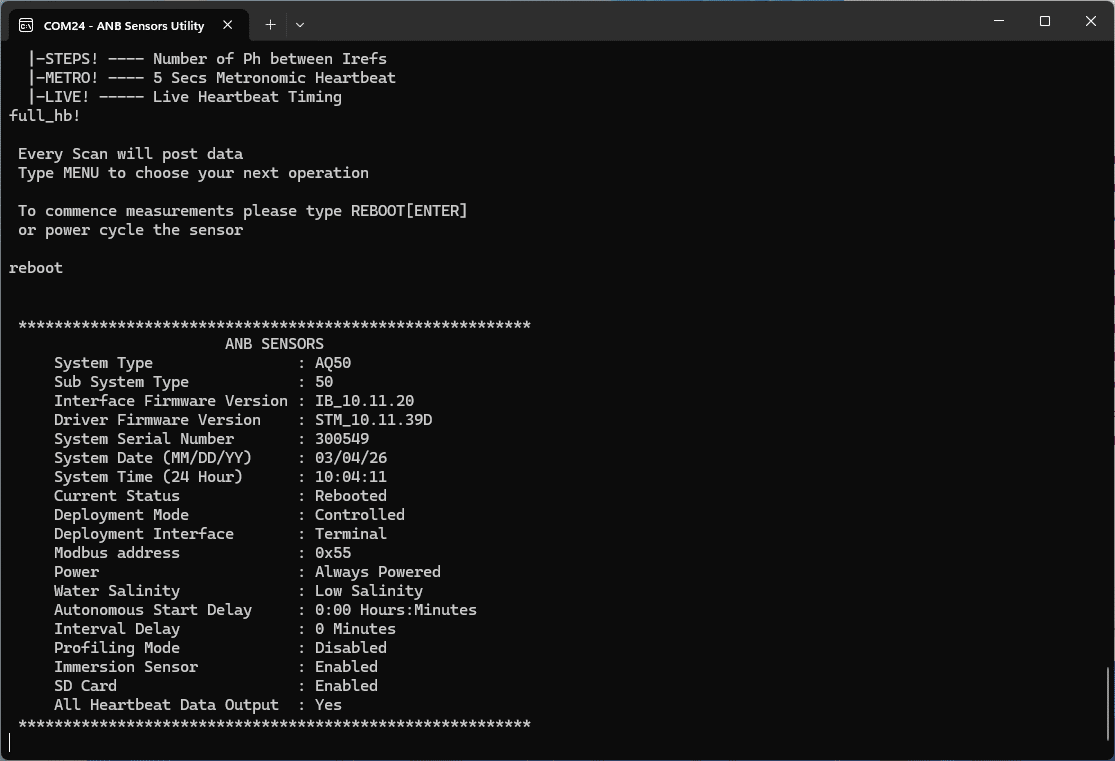 |
Choose if you want to download the debug datafiles, or save them to the cloud. N.B. Saving to the cloud is an easier method to share the debug datafiles with ANB, but does require internet access.
| 10. To download the debug datafiles | |
|---|---|
| a) Select option 4 and a list of files will be shown | 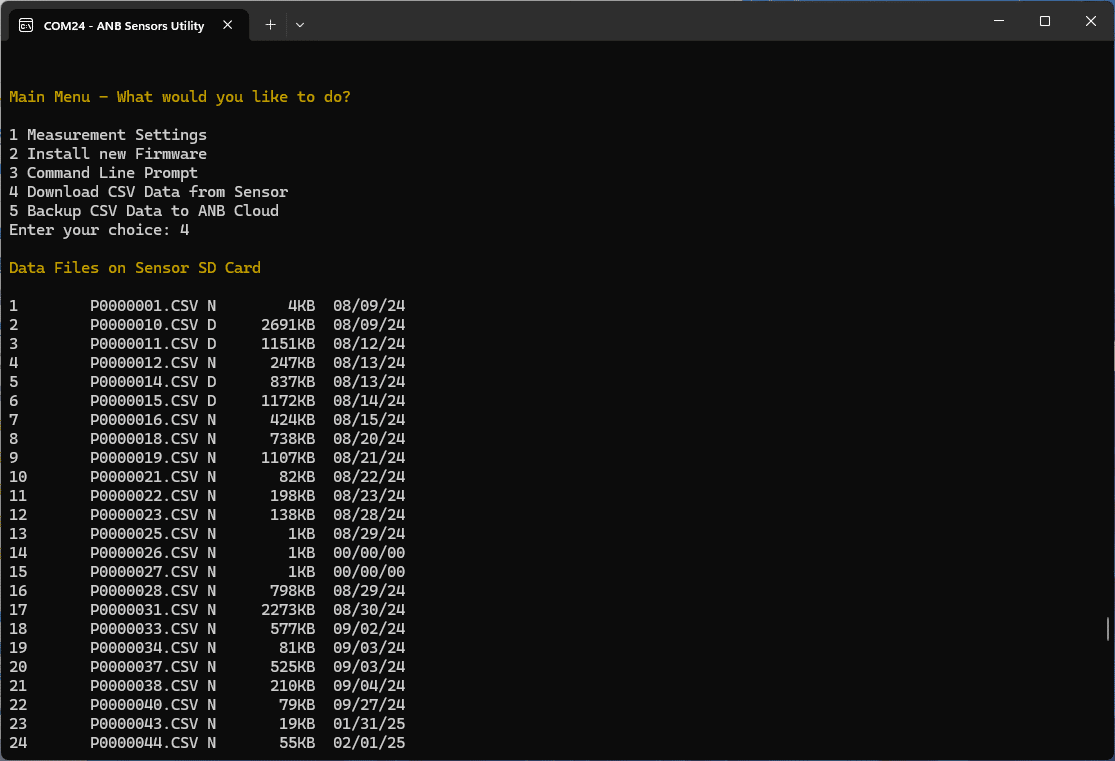 |
| b) Select the last 10 files to download from the sensor by using the number on the left hand side of the utils screen | 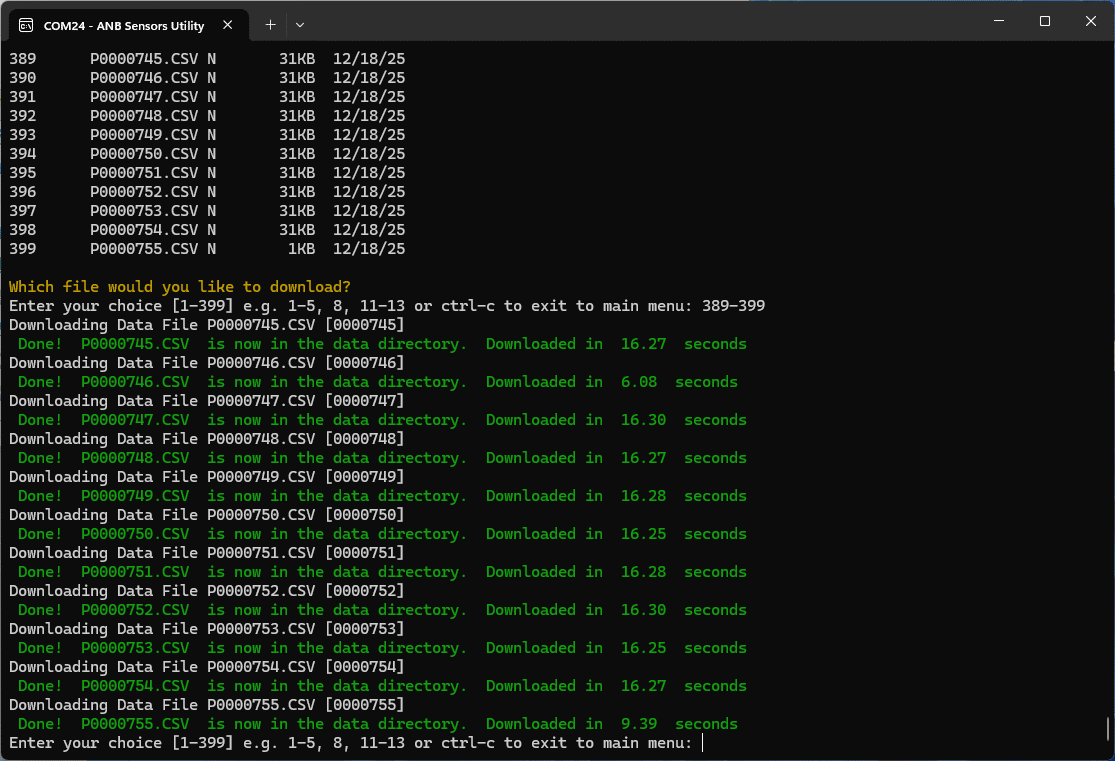 |
| c) The files will be downloaded to the Data folder in the anb_utils folder d) Send ANB the debug datafiles | 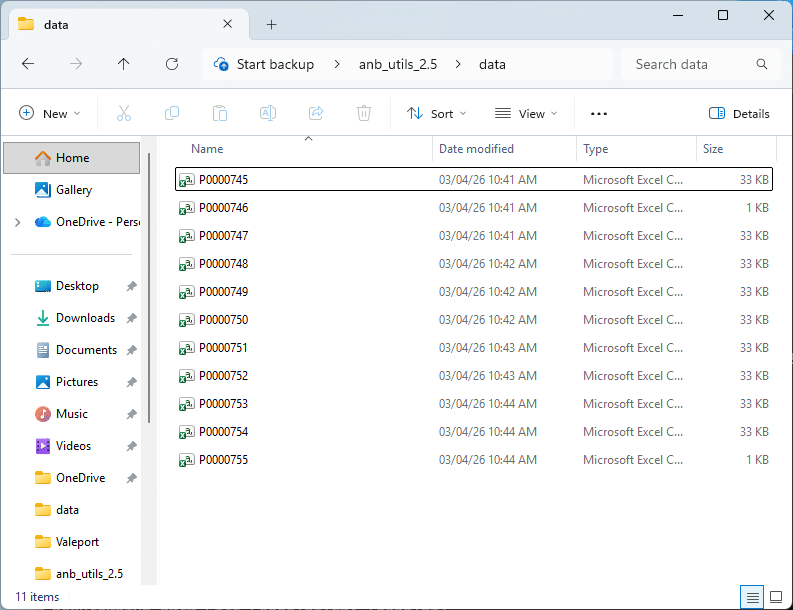 |
| 11. To save debug datafiles to the cloud | |
|---|---|
| a) Select option 5 b) Make a note of the URL c) Type Y and the files will be uploaded directly to the cloud d )Send ANB the URL so we can access the data | 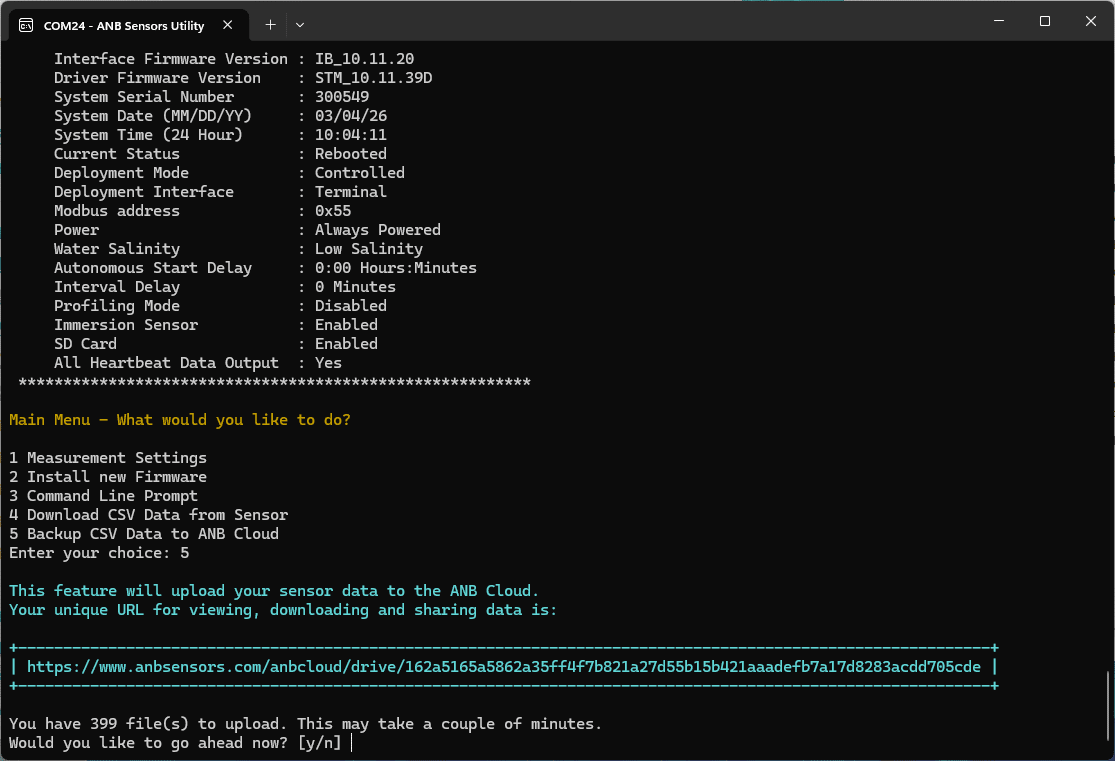 |
| It should take around 15-20s per file (if a file takes significantly longer, please turn the sensor on and off and the utils program will continue) |
| Once complete | |
|---|---|
| 12. Type: Ctrl C 13. Select option 3 for the command line prompt 14. Type: menu! | 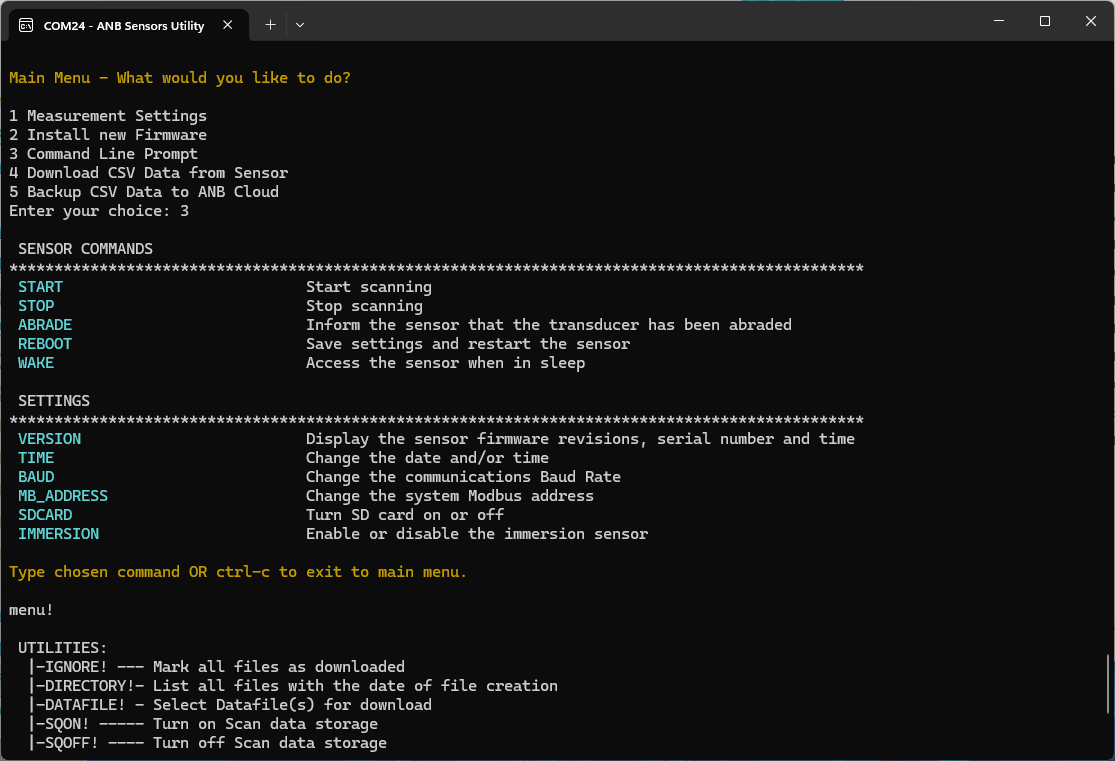 |
| 15. Type: ph_HB! 16. Type: mode 17. Select option 2 18. Type: reboot | 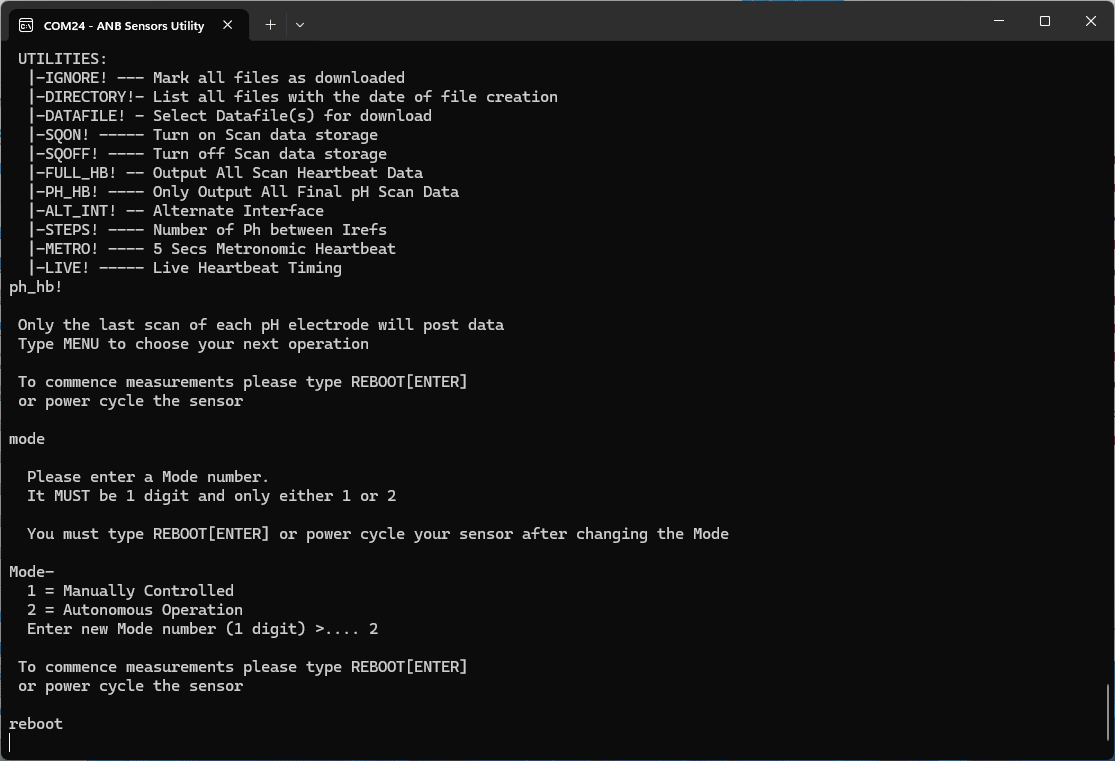 |
For further support please contact support@anbsensors.com