Data Download / Backup
If your SD card contains a large number of data files, the download or upload to the cloud may fail due to a timeout issue.
To resolve this, increase the timeout setting to allow more time for the transfer to complete.
- Create an ini file using notepad (can be called anything e.g. anb.ini) and add in the following property:
file_download_timeout=5
a) Open Notepad
b) Type your .ini content (file_download_timeout=5)
c) Click File > Save As
d) In the File name field, enter "anb.ini" (including the quotes to ensure it’s saved as .ini and not .ini.txt )
e) In the Save as type dropdown, select All Files (.)
f) Click Save
- Run the ini file:
a) Open the Windows Command Prompt or PowerShell. (You can do this by typing cmd or powershell into the Windows search bar and hitting Enter.)
b) Navigate to the directory where anb_utils.exe and your .ini file are located.
(Use cd.. to move up one directory level and dir to list the contents of the current directory.)
c) Enter the following command to run the utility:
(e.g. in this example the .ini file is called anb.ini)
anb_utils.exe anb.ini
- anb_utils will open and will read the properties you have provided. In this case you will see a message on startup that looks like this:
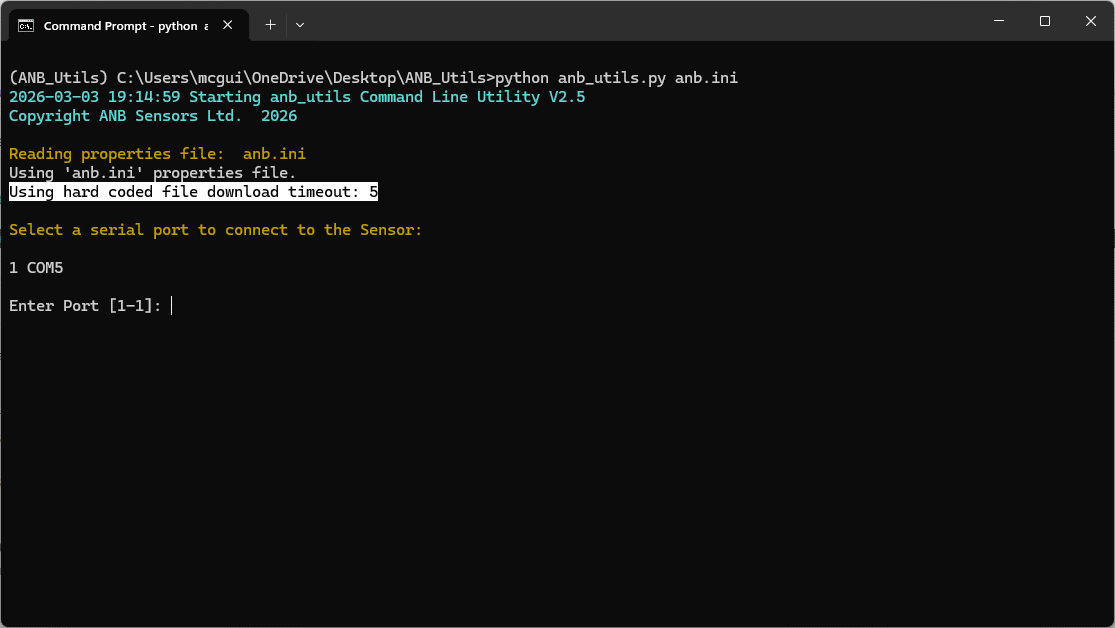
- This has the effect of increasing the Serial Port timeout to 5 seconds (default is 1 second), which should be enough to handle the slowness presented when you have 00’s of files on the SD card.
NOTE: You need version 2.5 or higher of anb_utils
If you have any issues upgrading your firmware or require further support please contact support@anbsensors.com